From spec to PDF
in minutes.
Six steps. Start to a sent quote. The first time you do it, give it twenty minutes. After that, four.
- Step 01 · Set up
Your firm, once.
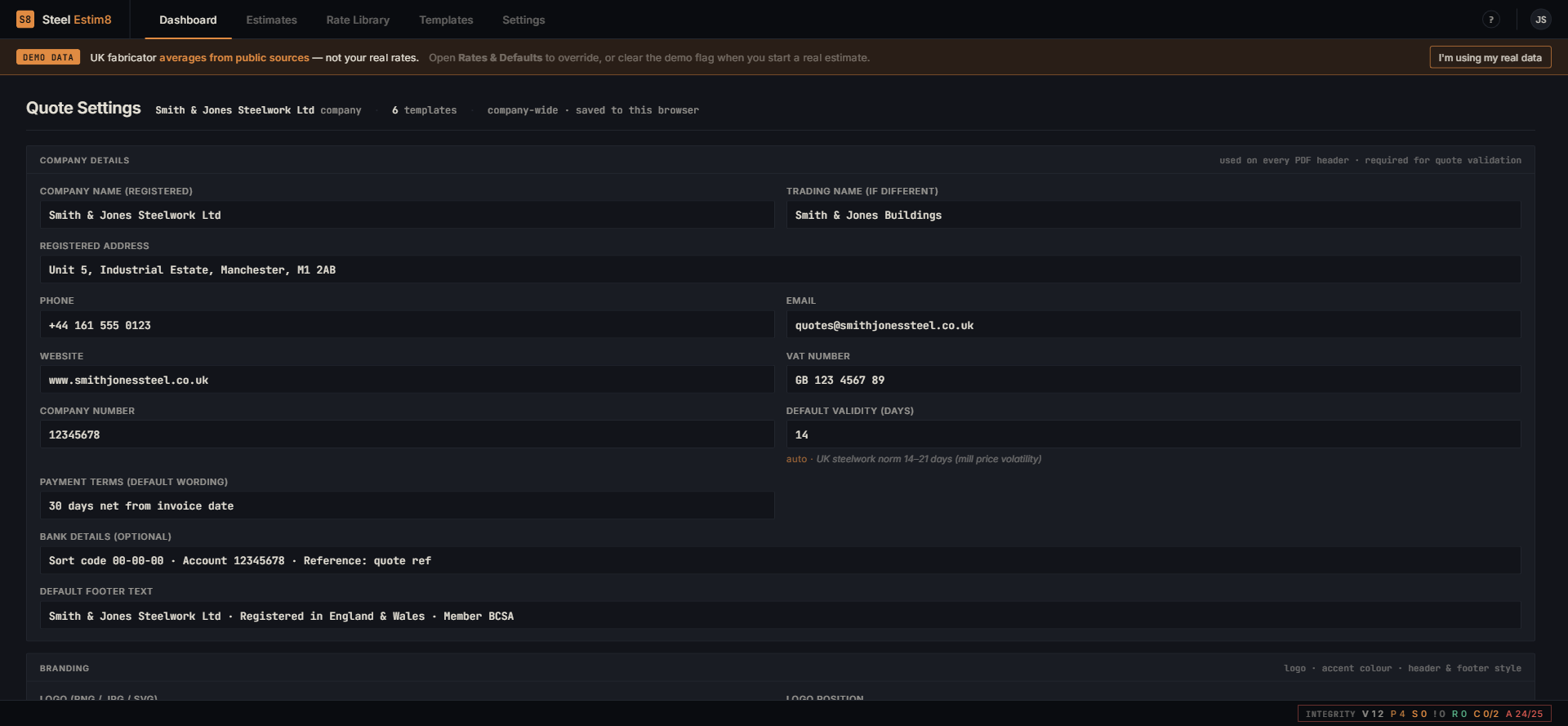
Company name, registered address, VAT, payment terms, default footer wording, logo. Goes in the header of every quote PDF forever. Set up takes about three minutes.
- Trading name vs registered name (both on the PDF if needed)
- VAT & company number printed for credibility
- Payment terms wording auto-populates each quote
- Logo, accent colour, header style configurable
- Step 02 · Rates
Every rate, one home.
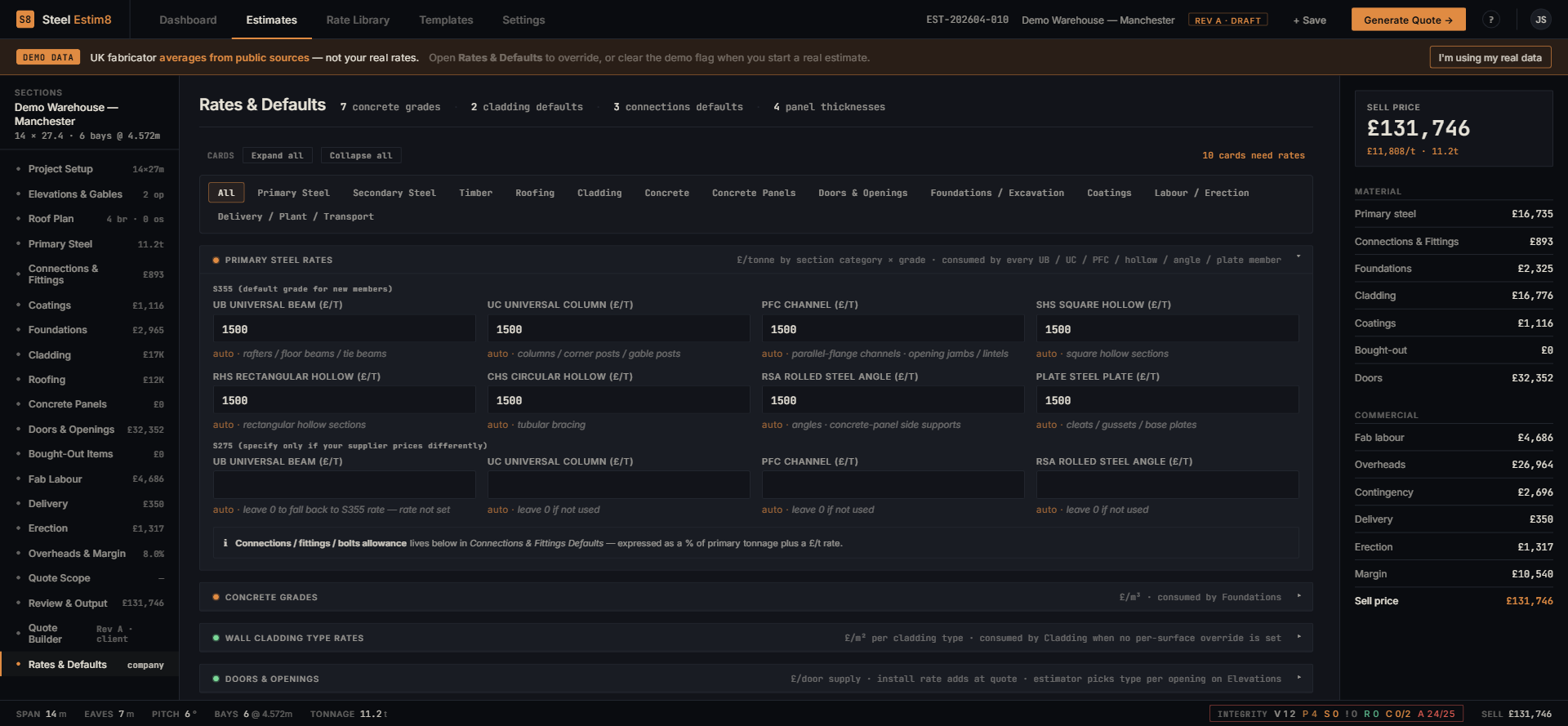
The rate library is the spine of the whole product. Set your steel sections, secondary, timber, roofing, cladding, concrete, connections defaults — once. Every estimate after this inherits them. Change a number here, every future estimate uses the new one.
- UK steelwork norms pre-loaded as a starting point
- Override anything, save your version
- Concrete grades, panel thicknesses, connection allowances all in one place
- No more "which spreadsheet has the latest figures?"
- Step 03 · Project setup
Enter the project details.
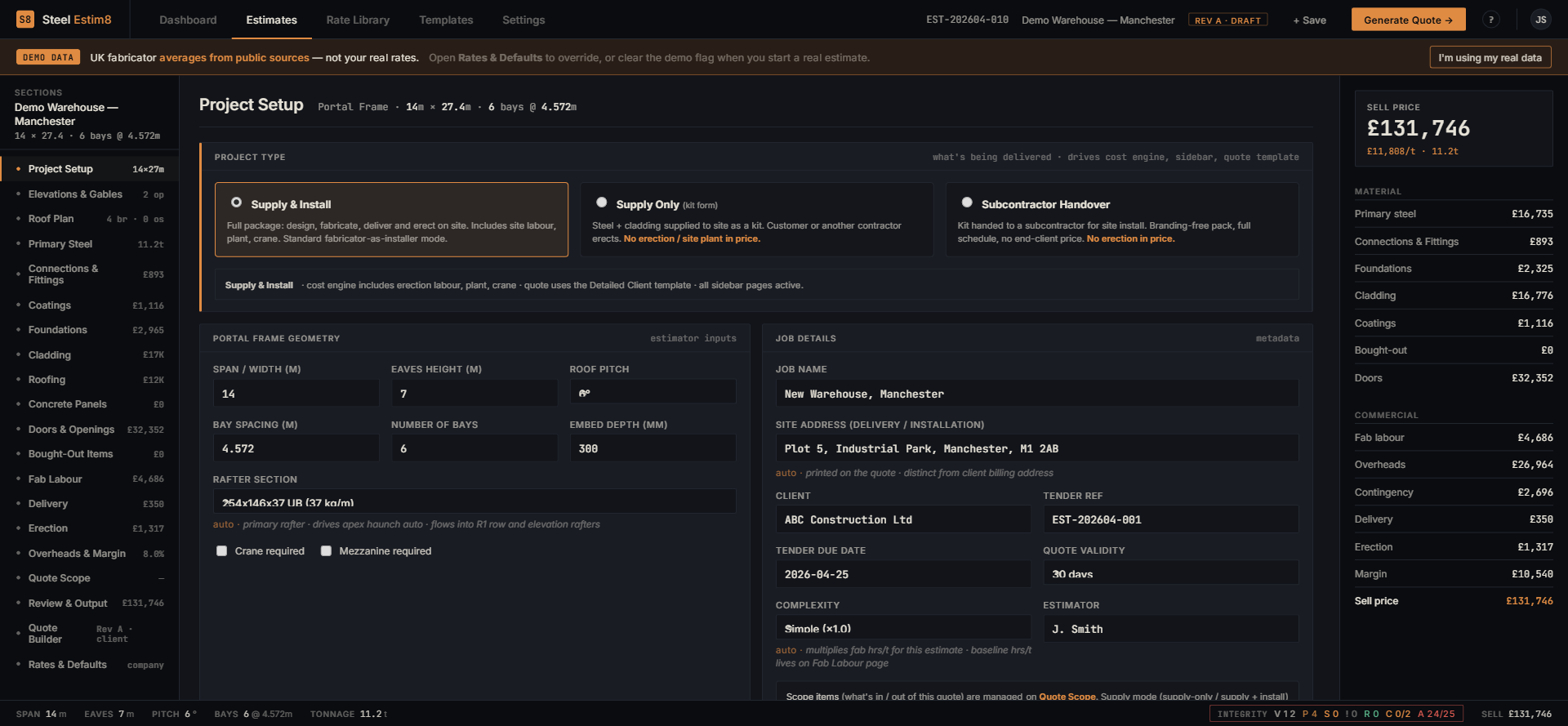
Choose the project type (Supply & Install, Supply Only, Subcontractor Handover). Type in span, length, eaves, pitch, number of bays, job site, client. The sell-price reads on the right rail as you input — you're already pricing the job before you finish filling the form.
- Three project modes covering how UK shops actually trade
- Live margin and sell-price on the right rail
- Client and site details flow straight onto the quote
- Step 04 · Geometry, openings & cladding
Inputs in — canvas, rails and price out.
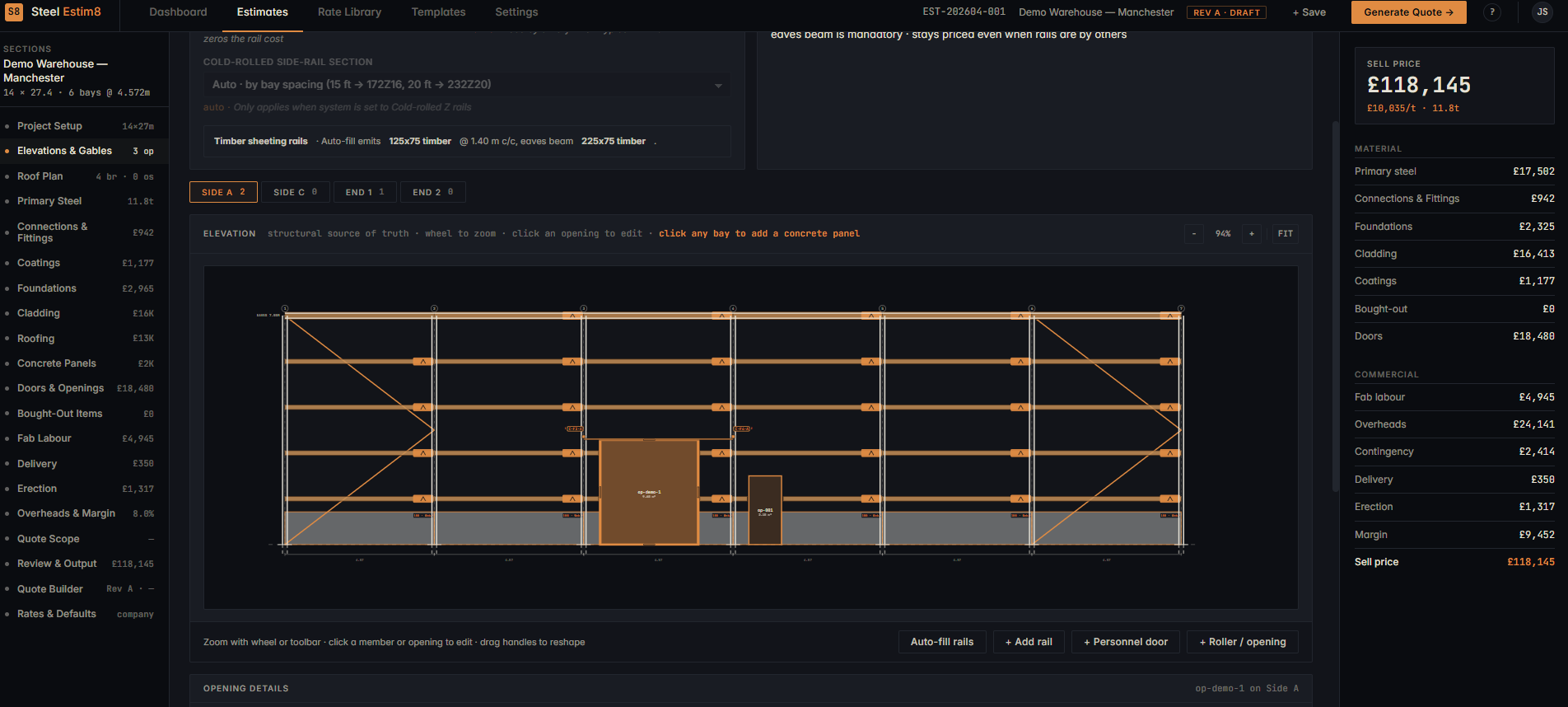
Open Elevations & Gables. Add personnel doors, roller shutters, roof lights, side rails, additional bays. The canvas redraws with structure, bracing and rails as you go. The sell-price recalculates with each change. You can see what you're quoting, not just what your spreadsheet thinks you're quoting.
- Personnel doors, roller shutters and roof lights drawn live
- Cold-rolled side-rail section auto-sized by bay spacing — or override
- Timber sheeting rails at configurable centres, eaves beam priced separately
- Bracing visible on the canvas, per-elevation cladding overrides
- Sell-price stays in sync with every change
- Step 05 · Quote builder
Configure the quote, see the PDF.
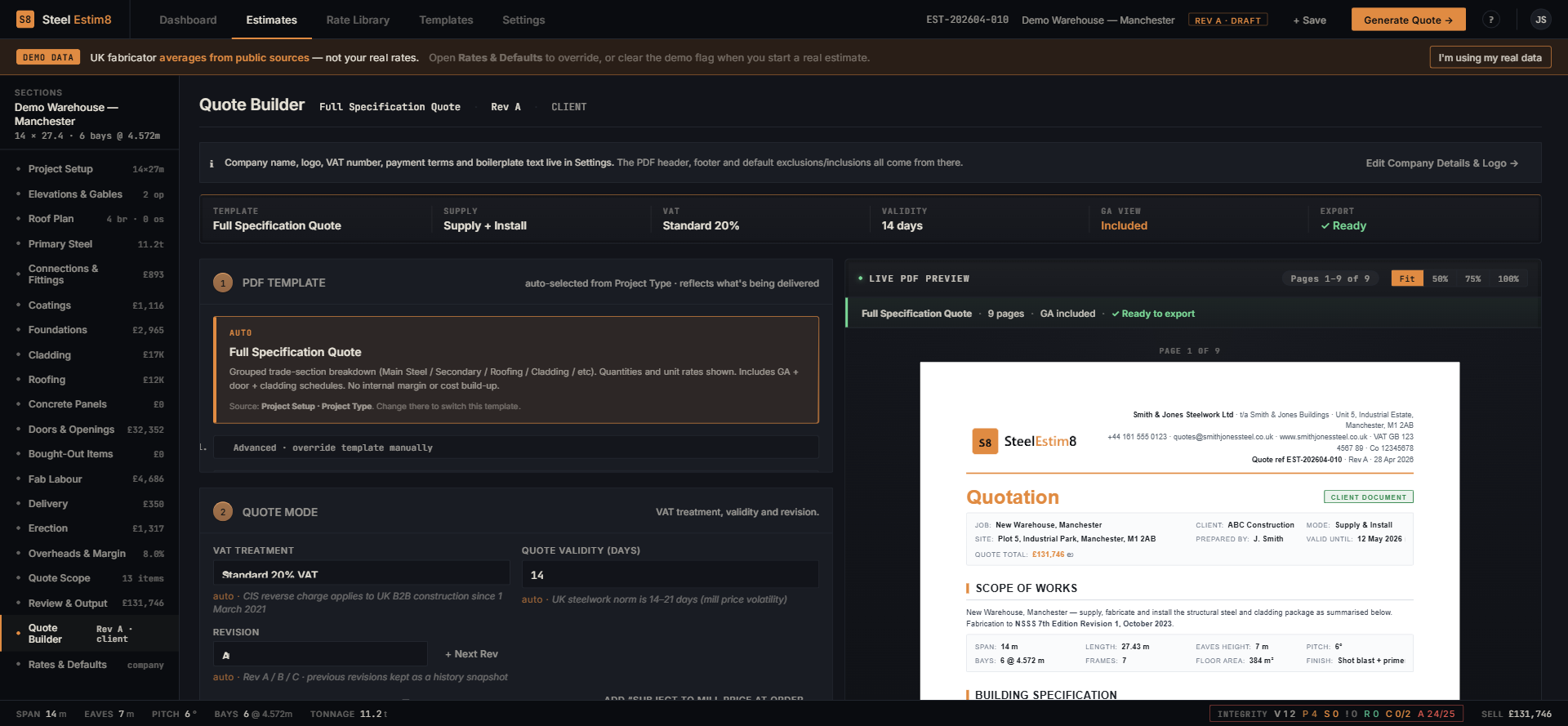
Pick the template (Full Specification, Summary, Custom), choose VAT mode, set validity days. The PDF preview renders on the right as you change settings. Tweak wording and you see it on the page before you ever press export.
- Full Specification template covers schedule of works, exclusions, assumptions
- Live PDF preview — not a print-dialog surprise
- Quote reference auto-generates — consistent across the firm
- Step 06 · GA drawing
A full GA on every quote.
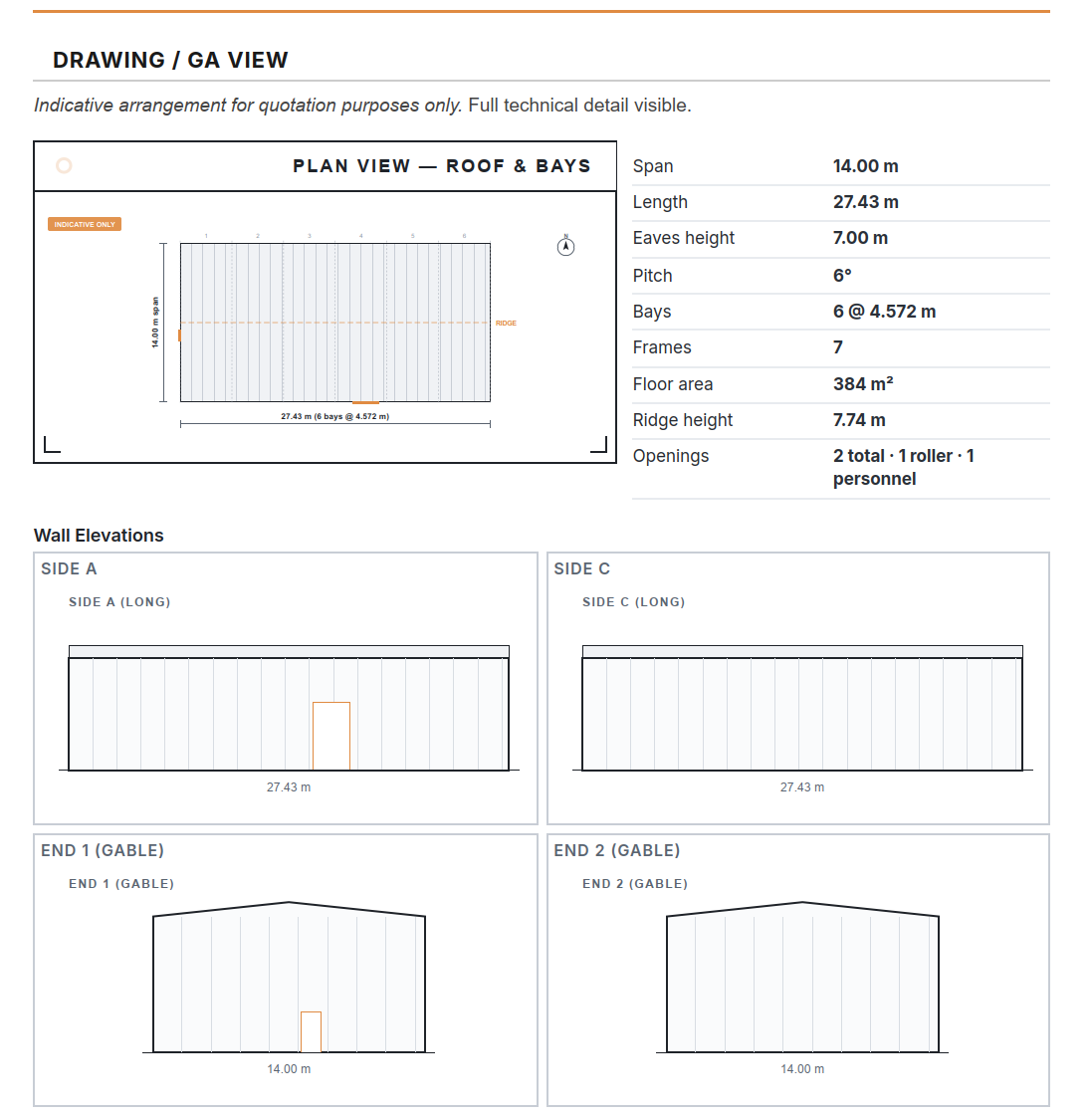
Page 2 of every quote PDF is a one-page general-arrangement drawing of the building you've defined: plan view, all four wall elevations, and a spec table covering span, length, eaves, pitch, bays, frames, floor area, ridge height, and opening counts. North arrow on. "INDICATIVE ONLY" stamp on. Your client sees exactly what they're paying for. You stop hunting for "a drawing for the quote".
- Plan view + four wall elevations on a single page
- Spec table — span, length, eaves, pitch, bays, frames, floor area, ridge height, openings
- Dimensions on every drawing, north arrow, ridge marked
- "INDICATIVE ONLY" stamp keeps it out of engineering-review territory
- Built from the same data as the price — never out of sync
- After · The pipeline
Every estimate, in one place.
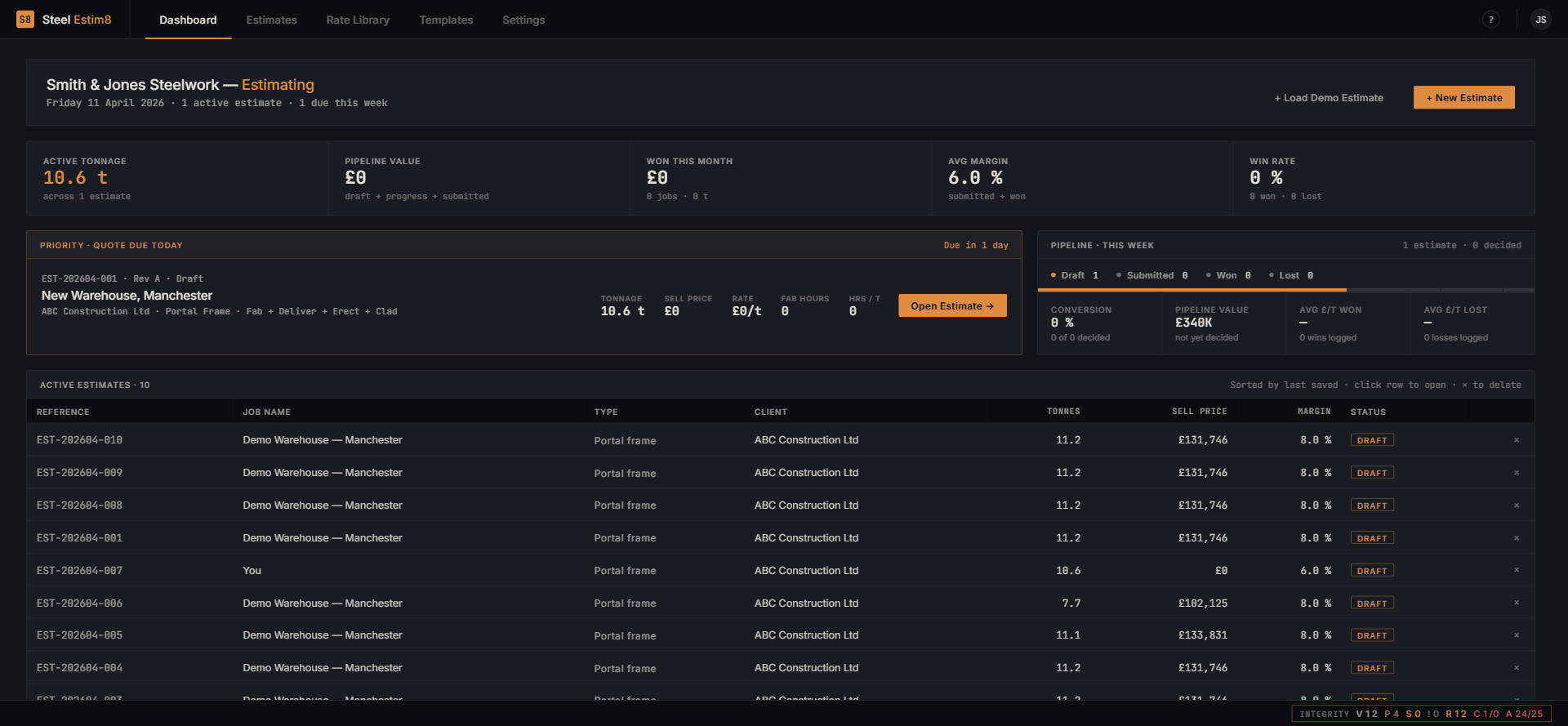
The dashboard tracks active tonnage, pipeline value, win rate and average margin. Priority quote on top. Every active estimate in a sortable table. No more "which spreadsheet was that job in?".
- KPI tiles for tonnage, value, win rate, margin
- Priority quote bubbled to the top
- Sortable, searchable list of every active estimate
Want to see it on a job you already quoted?
That's the only test that matters. Sign up, plug in last week's portal-frame, see if the number and the PDF beat what you sent. Monthly card payment, cancel any time.